How to Manage Email Attachments to Stay Out of SPAM?

Sending attachments in emails might seem harmless but it’s one of the easiest ways to get flagged as spam.
Email spam filters don’t care if it’s a proposal, pitch deck, or company brochure, poor email attachment practices will SINK your email deliverability.
In this guide, I will break down how to manage multiple email attachments on emails without landing in spam.
These practical tips will help outbound reps, email marketers and generally any business email users to share files without landing in spam folder.
Should you ever send attachments in cold emails?
Generally, no. If you’re sending a cold email to someone who doesn’t know you, attaching files can be a trust breaker. Instead, earn trust first. Start a conversation, and if the lead expresses interest, then share attachments or links.
Alternatively, you can include a link to a landing page or document hosted on your website.
Why email attachments often trigger email spam filters
Before you learn how to manage multiple email attachments, first let’s see why attachments are generally prone to spam.
They do it due to 4 reasons –
#1. Risky file types
Certain file formats are closely associated with malware.
Executables like .exe, scripts like .js, and even some compressed formats like .zip or .rar can raise instant red flags.
Safer file types for email attachment include:
- PDF (.pdf)
- Word and Excel docs (.docx, .xlsx)
- Plain text (.txt)
- Common images (.jpg, .png, .gif)
#2. Oversized Files
Most email providers have attachment size limits.
But even before hitting that limit, large email attachments can slow down delivery or trigger blocks.
A good rule of thumb: keep attachments below 10MB, ideally under 5MB.
Read more: How to Increase Outlook Attachment Size Limit? Send Large Files
#3. Poor email sender reputation
Spam filters evaluate your overall email sending behavior.
If you’re mass sending unsolicited emails with attachments, you’re automatically under scrutiny.
Combine that with a poor open rate or a lack of proper email domain authentication, and you have a recipe for the spam folder.
#4. Lack of attachment context
If your email contains just a line of text and a mysterious attachment, it looks shady both to spam filters and human recipients.
A suspicious-looking file with no explanation is one of the fastest ways to get flagged.
For more detailed information on why email attachments trigger spam filters. Check out the below article.
Read more: Why Multiple Email Attachments Trigger Spam Filters (guide)
17 Tips to safely manage attachments in emails
Here are some tips to manage attachments in emails –
Tip #1 → Use Safe & trusted file formats
Stick to file types that email providers trust. PDFs, JPGs, and DOCX files are your safest bets.
These formats are widely accepted and unlikely to contain harmful code.
Avoid risky file types like .exe, .bat, .js, or .zip that are frequently flagged by spam filters.
Tip #2 → Compress and optimize your files
Oversized files are a common reason for emails getting blocked or bounced.
Compress images and documents before sending using tools like TinyPNG or SmallPDF.
This reduces size without hurting readability or visual quality.
💡Quick tips:
- Use .jpg and .png over RAW or TIFF
- Compress PDFs using free tools
- Avoid high-res images unless essential
Tip #3 → Limit attachments per email
Avoid attaching more than 1–2 files in a single email.
Too many attachments can look spammy.
If you need to send multiple email attachments, consider zipping them carefully or use a cloud link instead.
Tip #4 → Add file context inside the email body
Explain why the attachment is included and what it contains.
(Sample email with attachment SS will be added here)
This not only reassures the recipient but also signals legitimacy to spam filters.
Vague emails with unexplained files are likely to be flagged.
Example of such an email:
“Here’s the proposal we discussed includes pricing, scope, and delivery timeline.”
Tip #5 → Use cloud storage links for large files
Instead of embedding large files directly, host them on Google Drive, Dropbox, or OneDrive and include a direct link.
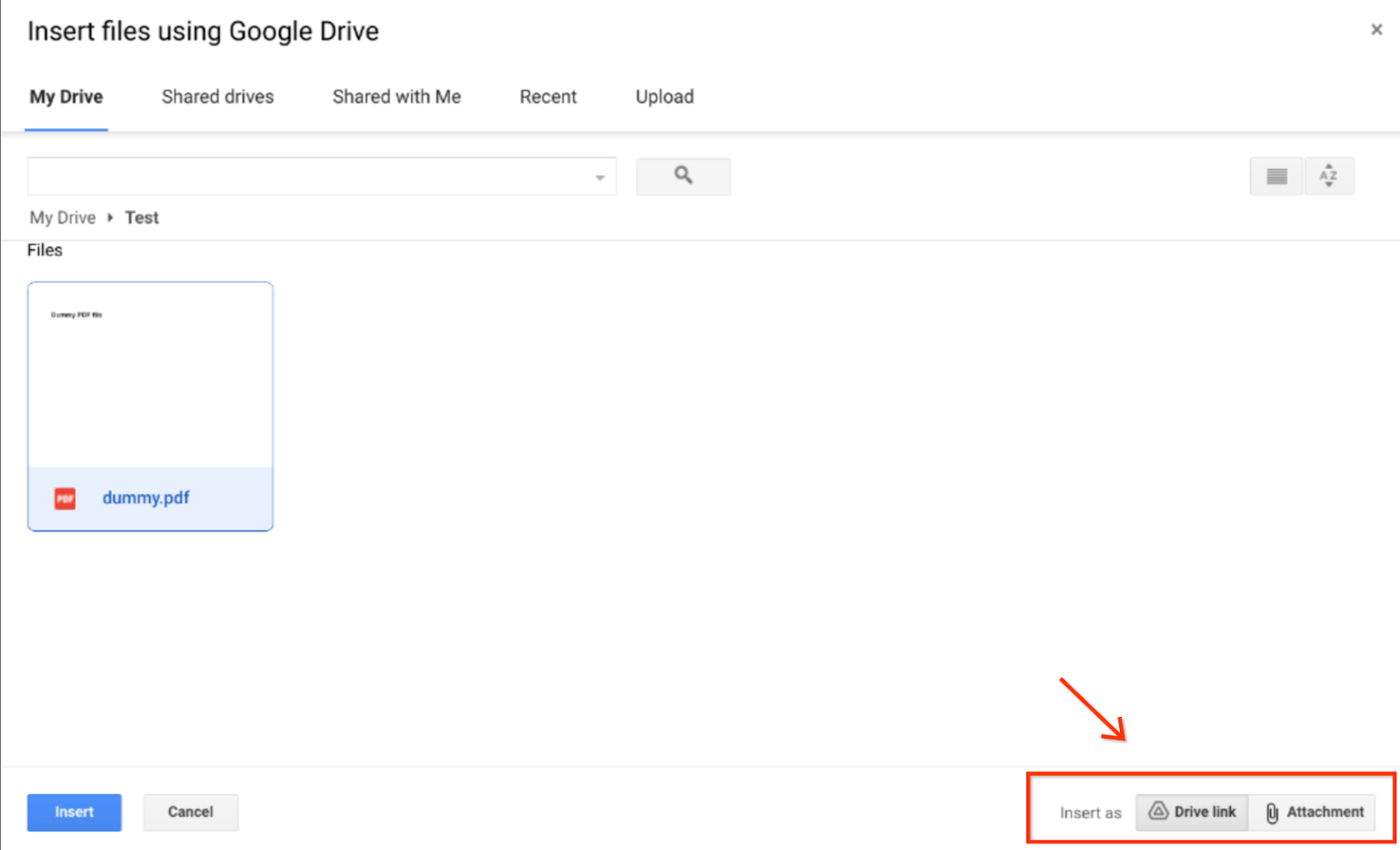
This keeps the email light and reduces email bounce rates.
💡 Quick tips:
- Avoid shortened links (e.g., bit.ly) as they’re often seen as suspicious
- Always check sharing permissions and set files to read-only if needed
Tip #6 → Authenticate your email domain
Setting up SPF, DKIM, and DMARC records improves your domain’s credibility and trust with receiving email servers.
Authenticated domains are less likely to be marked as spam, even with attachments.
Tip #7 → Monitor your sender reputation
Your email domain’s reputation plays a huge role in email deliverability.
Use tools like mail-tester.com and Google Postmaster Tools to analyze spam triggers and maintain a healthy sender score.
Tip #8 → Avoid spam trigger words
Overuse of promotional phrases like “buy now,” “free download,” or “limited time” can land your email in spam even if the attachment is clean.
Keep your language professional and concise.
Read more: Spam Filter Words: What Makes Emails Look Spammy?
Tip #9 → Add a branded file naming convention
Use file names that clearly indicate content and reflect your brand identity.
If you are sending an invoice, name it something like SmartReach_Pricing.pdf that builds trust and signals professionalism to both recipients and filters other than pricing invoice.pdf
Tip #10 → Include a brief file summary in plain text
Mentioning what’s inside the attachment in 1–2 lines helps spam filters understand the context. It also helps recipients quickly grasp the file’s purpose without opening it.
Tip #11 → Use a consistent sending pattern
If you typically don’t send email attachments, suddenly sending them in bulk can raise red flags.
Gradually warm up your sending pattern and keep your volume consistent over time.
Tip #12 → Avoid embedding links inside documents
Avoid placing hyperlinks within your attached files, especially redirects.
Many spam filters scan attachments for malicious links. If necessary, use full URLs sparingly and avoid URL shorteners.
Tip #13 → Enable two-way engagement first
Before sending attachments to cold prospects, engage them in a brief conversation.
Ask if they’d like the file or wait until they reply. This improves trust and inbox placement.
Tip #14 → Test emails with attachments before sending
Send a test version of your email (with attachment included) through tools like Mail-Tester or GlockApps. These will evaluate spam risk and let you make necessary changes before hitting send.
Tip #15 → Disable macros and scripts in office files
Macros in Word or Excel files are known malware vectors. Make sure your DOCX and XLSX files don’t include macros or scripts, filters often block these regardless of sender reputation.
Tip #16 → Set file permissions to “view only”
When sharing links via Google Drive or Dropbox, always restrict access to “view only.”
Editable permissions can make your links look risky and lower your deliverability score.
Tip #17 → Don’t attach files in email signature blocks
Avoid including logo images, certifications, or banners as part of your signature. These often show up as separate attachments, cluttering the message and confusing filters.
5 more email attachment tips and checklists
- Avoid mass emails with attachments: Never send the same attachment in a large mailing list. Mass attachments are highly prone to spam. Instead, customize or link out.
- Keep text and images balanced. Don’t rely solely on images (even in attachments) to convey your message. A good text to image balance avoids spam filters
- Regularly clean your list: Remove undeliverable or unengaged email addresses. A clean email list boosts open rates, which in turn tells spam filters you’re a reputable sender.
- Warm-up emails: At least warm-up sending email addresses for 2 weeks before sending any email attachments via these emails.
- Monitor feedback: Use feedback loops or reports (like Google Postmaster Tools) to see if your mails are marked as spam. If attachment-related complaints rise, reassess your strategy.
By following these attachment management best practices, you’ll significantly reduce the chances of getting flagged and improve your chances of landing directly in the recipient’s inbox.
F.A.Qs
Q. What file types are safest for email attachments?
The safest email attachment formats include PDF (.pdf), Word documents (.docx), Excel files (.xlsx), and common images (.jpg, .png, .gif). These formats are widely trusted by email providers and unlikely to trigger spam filters.
Q. What size should email attachments be to avoid spam filters?
Keep email attachments below 10MB, ideally under 5MB. Files larger than this threshold significantly increase bounce rates and spam filter triggers.